

Losing access to a hard drive because of a forgotten password can be stressful. In many cases “password-protected” means the drive is encrypted (for example by BitLocker or by hardware tools). Strong encryption often AES-256 scrambles your data in such a way that only the correct password or recovery key can unlock it… nothing else. In other words, if you can’t provide the password or key, even professional tools won’t be able to decrypt that drive. As one data-recovery guide bluntly notes, brute-forcing modern AES-256 encryption is “not a viable option” (it would take supercomputers thousands of years).
If you know the Hard Drive Password (or Key)
Fortunately, if you do have that password or recovery key, you have a good chances that you will recover your files. First, just connect the drive to a compatible system, maybe yours or your friend’s. For drives locked with vendor security software (like a Western Digital Passport), run the official unlocking utility. For example, Western Digital’s Drive Utilities will prompt you for the password and once you enter it correctly, it will just unlock the drive for normal access. If there is a BitLocker-encrypted drive, the BitLocker password or the 48-digit recovery key is just mandatory… nothing else. Windows will maybe ask for the key on connection as well. If you have lost that password but that drive is linked to a Microsoft account, check those Account Settings online for a saved BitLocker key… keys can also be on a USB stick or printed on paper.
Once the drive is unlocked, you can simply copy your data to a safe location. In many cases, copying files out manually is enough.
If the Password (or Key) Is Missing
Unfortunately, if the drive remains locked and no password or recovery key is available, the options are extremely limited. For most modern encrypted drives—such as those protected by BitLocker or hardware encryption used in many WD drives—recovering data without the correct credentials is effectively impossible.
For example in the drives with AES-256 encryption without the password “access is nearly impossible” and that resetting the drive (wiping it) is usually the only way to remove the lock.
That said, it doesn’t hurt to check for any backups or clues. Look for any saved recovery key (for BitLocker, Microsoft might have your key in your account). See if there’s a USB where you stored the key or a printout. If a recovery key exists, check password managers, saved notes, or backups, people often store it without realizing. If you find the key, use it to unlock the drive and continue with recovery. However, if the key is truly lost, be cautious with third-party “hacking” tools.
Those tools usually don’t work against real hardware encryption—and they can make things worse by damaging the drive even more. If the data actually matters, your best move is to go with a professional data recovery specialist or stick to reputable recovery software, not shady “hack” tools. Even then, there are no guarantees. At best, you might get the encrypted files back, but there’s no real way to recover or bypass the password.
Using Data Recovery Software (After Unlocking)
Once you’ve got the drive unlocked, data recovery software can help you pull back lost or corrupted files. For example, Windows data recovery software like Stellar Data Recovery for Windows Professional is designed to scan accessible drives and recover missing files and folders. It even works with BitLocker, if you’ve got the recovery key, it can scan the unlocked drive and recover deleted or formatted data. Bottom line, once the drive is open, a tool like this can help you get back files you thought were gone.
This tool doesn’t bypass encryption… it relies on the drive being accessible. But it excels at finding lost, deleted, or hidden files on any drive. In practice, the steps are straightforward:
- Unlock the drive. Enter the correct password or BitLocker recovery key so Windows treats the drive like a normal one—you’ll see it show up with its own drive letter in File Explorer. Once it’s unlocked, copy anything important over to a safe location right away. Just remember, recovery software only works after the drive is unlocked, so getting access is step one.
- Choose a recovery tool. There are many on the market but since you have a professional edition like Stellar, use it. Stellar Data Recovery Professional is built for Windows and supports encrypted volumes – it will prompt you for the BitLocker key if needed. Install and launch the software.
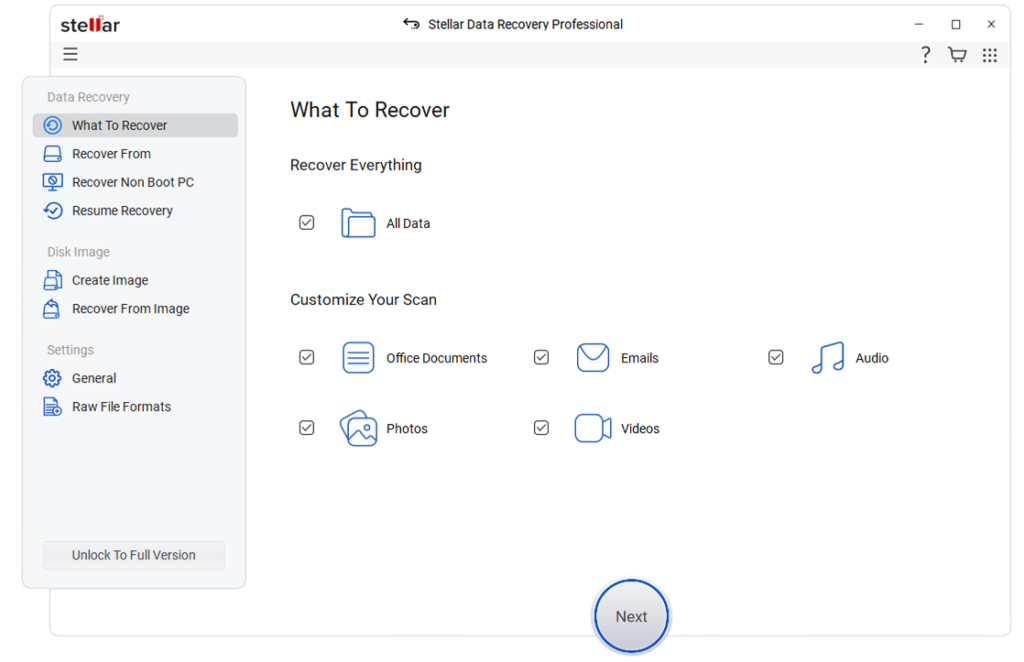
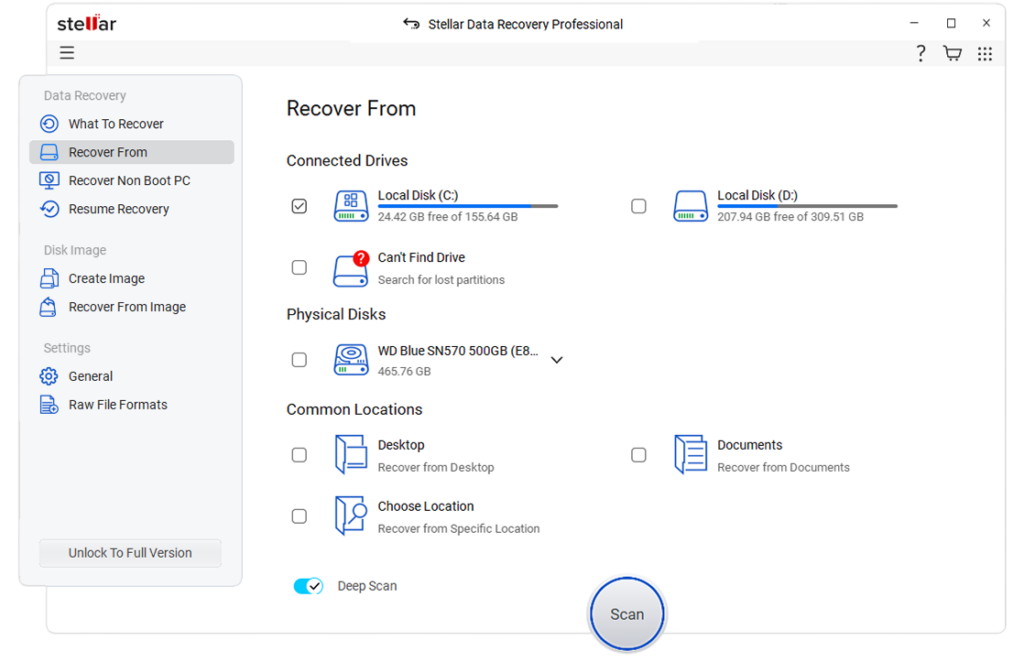
- Scan the drive. In Stellar, you would select the unlocked drive and begin a scan. If you suspect heavy corruption, enable Deep Scan. The software then reads sector-by-sector, looking for lost file signatures. (This is especially useful if files were deleted or if the drive was formatted after unlocking.)
- Preview and recover. Once this is complete, Stellar displays to you the list of recoverable files that can be recovered. The recovered files can be viewed as folders, types of files, or deleted items. You can also view each file to ensure that it is in working condition before you start to recover it. This ensures that you do not recover files that are in no condition to function. Once you have identified the files or folders to recover, you can then save them in another drive.
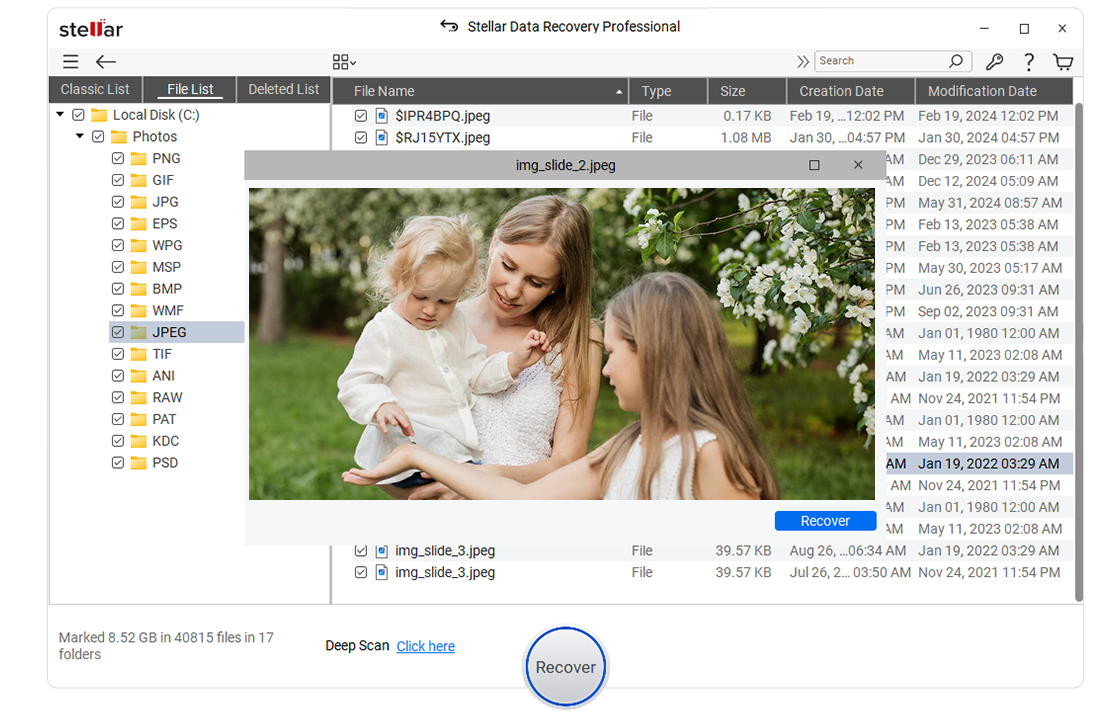
Tools like Stellar make the process much more user-friendly. It includes extras like “clone disk” features (to image a failing drive) and file filters to find specific items quickly. Plus its built-in BitLocker support means it recognizes an unlocked BitLocker partition and recovers from it. Importantly, this program does not magically bypass encryption: They simply work on the data after it’s been unlocked.
Preventing Data Loss and When to Call Pros
While recovering data is possible in many scenarios, prevention is crucial. Always keep backups in case encryption lockouts happen. In future, record passwords/keys securely. If you’re locked out right now and have exhausted all usual options, consider a professional service. Data-recovery labs can attempt advanced methods like extracting those residual key fragments or analyzing memory but they will be transparent that chances are slim without the key. If they do recover the drive’s contents, remember it will still be encrypted; you’ll need the key to actually open the files.
Conclusion
The key step here, before anything else, is just unlocking the drive first. If you can provide the password or BitLocker key, it’s an easy road from there backed by a reliable recovery program (such as Stellar Data Recovery Professional) to scan and restore those files of yours. If not, your only other routes involve backups or expert services, and even then there are no guarantees. Modern encryption is designed to be secure – which means losing the key often means losing the data, too. Always treat drive passwords with care, and remember: tools like Stellar Data Recovery can save the day only after the drive is unlocked, by digging out files that might otherwise be lost to formatting or accidental deletion


 WebProNews is an iEntry Publication