
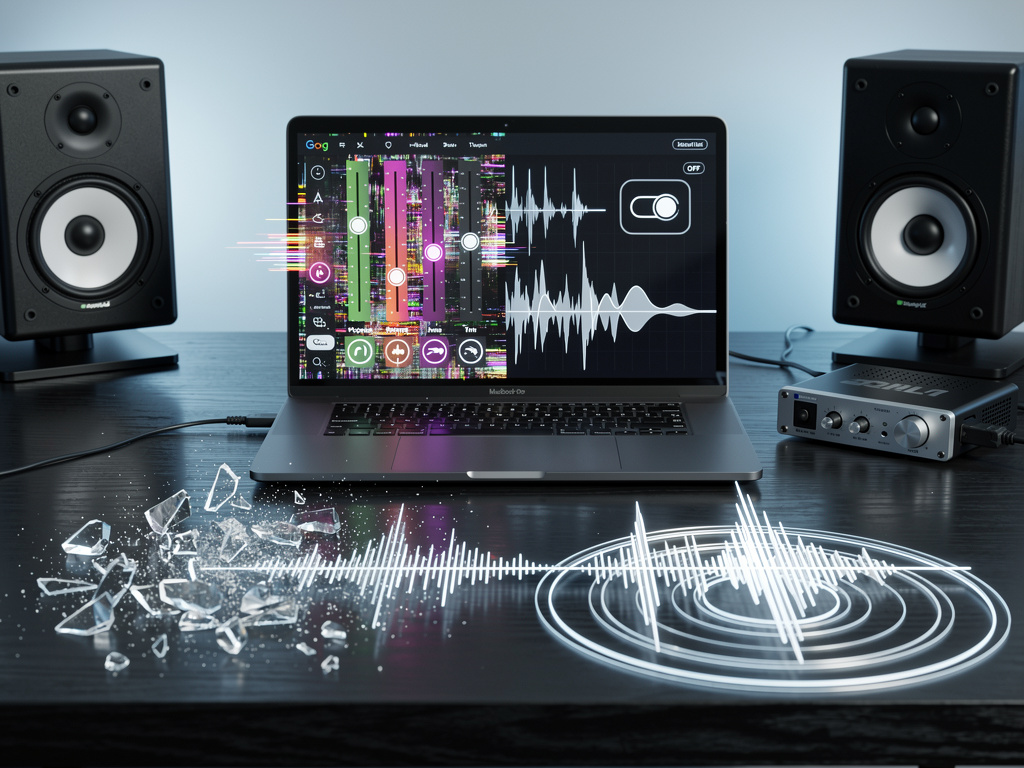
The Hidden Perils of Windows 11’s Audio Tweaks: A Deep Dive into Why They’re Often More Hindrance Than Help
In the evolving world of operating systems, Microsoft has long positioned Windows 11 as a sleek, user-friendly platform packed with features designed to improve everyday computing. Yet, beneath its polished interface lurks a subtle but persistent issue that’s been frustrating users since the OS launched: audio enhancements. These built-in tools, meant to refine sound output from speakers, headphones, and microphones, frequently do the opposite, introducing distortions, delays, and compatibility headaches. Drawing from user reports, technical analyses, and recent updates, this article explores the mechanics behind these enhancements, their unintended consequences, and whether turning them off could be the key to reclaiming pristine audio.
At their core, audio enhancements in Windows 11 are software-based adjustments applied to audio signals. They include effects like bass boost, virtual surround sound, and echo cancellation, often bundled with hardware drivers from manufacturers such as Realtek or Dolby. Microsoft integrates these into the system to ostensibly elevate the listening experience, making music richer or voices clearer during calls. However, as highlighted in a recent piece by MakeUseOf, these features can overprocess audio, leading to crackles, hissing, or unnatural echoes that degrade quality rather than improve it.
The problem isn’t new, but it’s gaining traction amid Windows 11’s ongoing refinements. Users on forums and social platforms report that enhancements clash with third-party software, such as equalizers or streaming apps, creating a cacophony of glitches. For instance, gamers might notice latency in voice chats, while professionals editing audio could find their tracks altered unpredictably. This isn’t mere anecdote; technical breakdowns reveal that enhancements apply post-processing layers that aren’t always transparent or configurable, leaving users to troubleshoot blindly.
Unpacking the Technical Underpinnings
Delving deeper, audio enhancements operate through the Windows Audio Processing Objects (APOs) framework, which allows drivers to insert effects into the audio pipeline. This system dates back to earlier Windows versions but has been amplified in Windows 11 with features like spatial sound and automatic device optimization. According to a guide from NinjaOne, users can access these settings via the Sound properties in the Control Panel, where options like “Bass Boost” or “Loudness Equalization” appear under the Enhancements tab— if the driver supports it.
Yet, the real trouble arises when these APOs conflict with system resources. High-fidelity audio setups, such as USB DACs or external sound cards, often bypass Windows’ processing for purity, but enhancements can interfere, forcing unwanted alterations. A Reddit thread on r/Windows11 captures the sentiment, with users lamenting how the feature “makes audio sound awful” and questioning its very existence. One commenter noted that enabling it distorted bass-heavy tracks, turning immersive experiences into muddled messes.
Moreover, recent Windows updates have exacerbated these issues. As of late 2025, patches intended to bolster security and performance have inadvertently reset audio configurations, re-enabling enhancements that users had disabled. This ties into broader criticisms of Windows 11’s stability, where audio woes join a list of bugs like folder icon glitches and wallpaper failures, as vented in posts found on X from users frustrated with their setups.
User Experiences and Widespread Frustrations
Across the board, personal accounts paint a vivid picture of dissatisfaction. On X, numerous posts describe how audio enhancements introduce popping noises during fullscreen videos or games, a persistent annoyance that hasn’t been fully addressed despite years of complaints. One user detailed their Lenovo ThinkPad running Windows 11 struggling with headphone quality via the 3.5mm jack, echoing sentiments from a Super User query on Super User. These stories aren’t isolated; they reflect a pattern where default settings prioritize presumed improvements over user control.
For accessibility, the stakes are higher. Blind users have reported on Reddit that enhancements disrupt screen readers, altering pitch and volume in ways that break immersion and usability. A post on r/Windows11 highlighted how the OS seemingly lowers sound quality automatically, compounding accessibility barriers. This aligns with broader critiques, such as a letter to Microsoft about audio issues eroding trust in the platform.
Professionals in audio engineering and content creation face even steeper challenges. Enhancements can introduce latency—delays in audio processing—that throw off real-time monitoring in software like Adobe Audition or Ableton Live. A GitHub issue on rrudito/procenter discusses conflicts with system settings, noting that while enhancements add “clarity and depth,” they often lead to unwanted distortions. Power users, as per the MakeUseOf analysis, benefit most from disabling them to ensure raw, unadulterated output.
The Case for Disabling and How to Do It
So, why disable audio enhancements? The primary argument is control. By turning them off, users bypass Microsoft’s algorithmic meddling, allowing hardware and dedicated software to handle sound as intended. This is particularly crucial for high-end setups where purity matters. A tutorial on ElevenForum provides step-by-step instructions: right-click the speaker icon, select Sound settings, navigate to device properties, and uncheck “Enable audio enhancements” or similar options.
But it’s not always straightforward. Some devices hide the tab, requiring registry edits or driver reinstalls. Recent news from Windows Forum advises considering this for avoiding distortion and latency, especially in setups with multiple audio endpoints. Users on X have shared quick fixes, like using the WIN + CTRL + V shortcut for direct access to sound outputs, as mentioned in a post by a Microsoft insider.
That said, enhancements aren’t universally bad. For casual users with basic hardware, they can indeed improve thin-sounding speakers or add spatial effects for movies. A Windows Forum article on enhance audio features explains how the toggle can deliver fuller sound without much fuss, though it warns it’s no “magic fix” and requires troubleshooting for optimal results.
Broader Implications for Windows 11’s Design Philosophy
This audio conundrum speaks to larger tensions in Windows 11’s approach. Microsoft’s push for seamless, AI-driven experiences—evident in features like Copilot and automatic updates—often overrides user preferences, leading to frustrations. A Windows Central piece from Windows Central labels 2025 a “disaster” for the OS, citing bugs and intrusive changes that erode trust. Audio enhancements fit this mold, as they auto-apply without clear notifications, forcing users to dig into settings.
Comparatively, competitors like macOS offer more transparent audio controls, with fewer reports of similar issues. Windows users, however, must contend with a fragmented ecosystem where driver variations from OEMs add layers of complexity. X posts from 2025 highlight ongoing problems, such as volume balances resetting for those with hearing disabilities, underscoring how these “features” can inadvertently harm inclusivity.
Looking ahead, Microsoft has made strides, like the improved volume mixer in updates, as noted in an older X post by Zac Bowden. Yet, persistent complaints suggest more work is needed. Tools like PowerToys, praised in a TechRadar article on transforming Windows 11, offer workarounds for customizing audio beyond defaults, empowering insiders to tweak without relying on built-in enhancements.
Expert Perspectives and Future Directions
Industry experts weigh in with mixed views. Audio engineers often advocate for disabling enhancements to maintain signal integrity, aligning with the NinjaOne guide’s emphasis on fixing lag and distortion. Conversely, for everyday scenarios, enhancements can bridge gaps in hardware limitations, as per the ElevenForum tutorial’s note on manufacturer-specific packages.
Recent developments, including 2025’s updates, have introduced better spatial sound options, celebrated in a PCMag opinion on PCMag as one of the year’s highlights. Still, user feedback on X indicates that issues like audio popping and device recognition persist, with some resorting to rollbacks or clean installs, as shared in multilingual posts about recovery processes.
For insiders, the takeaway is proactive management. Regularly checking audio settings post-update, experimenting with third-party equalizers like Equalizer APO, and staying informed via communities can mitigate risks. As Windows evolves, demanding more granular controls from Microsoft could lead to a system where enhancements are optional add-ons, not imposed defaults.
Navigating the Audio Maze in Practice
In practice, troubleshooting starts with identification. Symptoms like static or uneven volume often trace back to enhancements, as detailed in the MakeUseOf article. Users should test by disabling them, then re-enabling one by one to isolate culprits. For advanced setups, monitoring tools like LatencyMon can reveal processing delays tied to APOs.
Community-driven solutions abound. Reddit threads suggest driver updates from official sources, while X users recommend avoiding beta updates that might introduce new bugs. Integrating these with Windows’ built-in spatial sound—accessible via quick settings—offers a balanced approach for those who want some processing without the full enhancement suite.
Ultimately, the debate over audio enhancements underscores a fundamental question in software design: how much automation is too much? As users push back against overreach, Microsoft may refine these features, turning potential pitfalls into polished tools. For now, savvy insiders know that sometimes, the best enhancement is none at all, letting pure audio speak for itself.


 WebProNews is an iEntry Publication