
Somewhere deep in the settings menu of every Android phone lies a secret weapon that can transform even a budget handset into something that feels dramatically snappier. It doesn’t require root access, a custom ROM, or any third-party software. It won’t void your warranty, and it takes less than two minutes to implement. Yet the vast majority of Android’s billions of users have never heard of it — because Google has deliberately hidden it behind a developer-only gate.
The trick involves adjusting animation scales within Android’s Developer Options, a hidden menu that Google designed for app developers but that has become a treasure trove for power users seeking to squeeze every last drop of performance from their devices. By reducing or completely disabling the system animations that govern how windows open, transitions occur, and elements move on screen, users can make their phones feel substantially faster without any actual hardware improvement.
What Animation Scales Actually Do — And Why They Matter
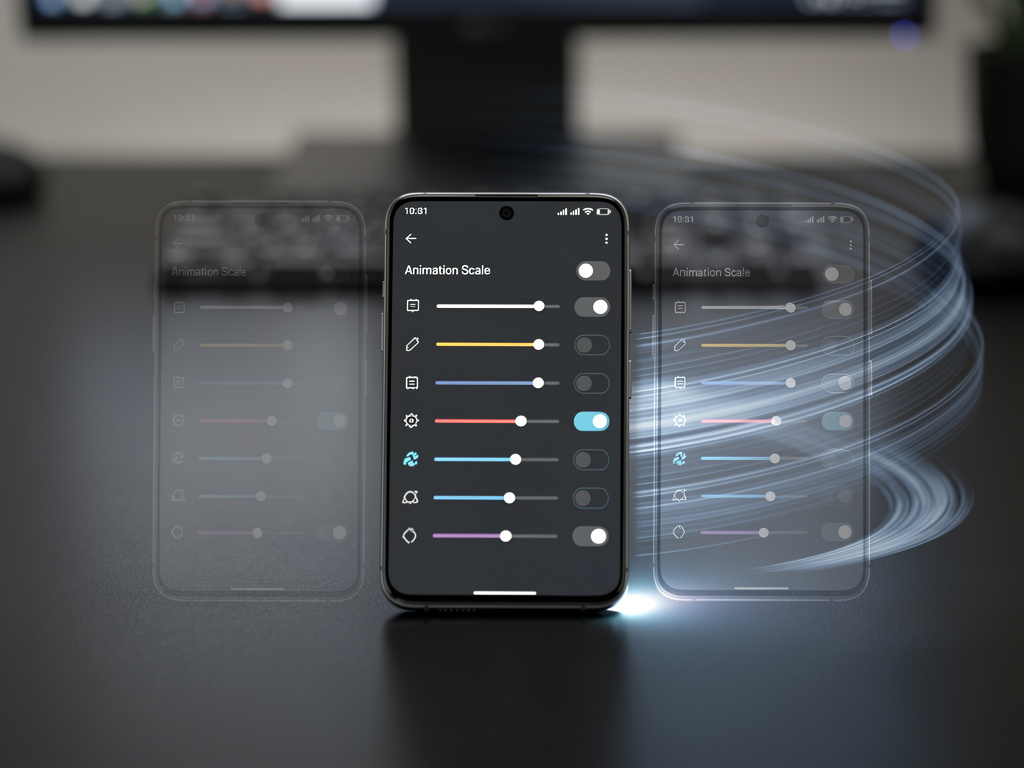
As detailed by MakeUseOf, the three critical settings in question are Window Animation Scale, Transition Animation Scale, and Animator Duration Scale. Each of these controls a different aspect of the visual flourishes that Android uses to make the operating system feel polished and fluid. Window Animation Scale governs the animations that play when you open or close an app window. Transition Animation Scale controls the motion effects when navigating between screens or activities within apps. Animator Duration Scale affects the speed of element-level animations — things like loading spinners, expanding menus, and other micro-interactions throughout the interface.
By default, all three of these settings are configured at 1x, meaning animations play at their standard, designer-intended speed. But within Developer Options, users can adjust each setting independently, choosing from values ranging from 0.5x (faster) all the way down to completely off, or scaling them up to 10x for testing purposes. The sweet spot that most enthusiasts recommend is 0.5x across all three settings, which cuts animation duration in half while still preserving the visual cues that help users understand what’s happening on screen. Setting them to zero eliminates animations entirely, creating an almost instantaneous response to every tap and swipe — though at the cost of visual context that some users find disorienting.
Unlocking the Hidden Menu: A Step-by-Step Process
The first hurdle for most users is simply accessing Developer Options, which Google keeps hidden by default to prevent casual users from accidentally changing settings that could affect system stability. To unlock it, users need to navigate to Settings, then About Phone, and tap the Build Number entry seven times in rapid succession. A toast notification will confirm that Developer Options has been enabled, after which the menu appears within the main Settings hierarchy — typically under System or directly in the settings list, depending on the phone manufacturer and Android version.
Once inside Developer Options, users need to scroll down to the Drawing section, where the three animation scale settings reside. Each can be tapped and adjusted independently. MakeUseOf recommends starting with 0.5x for all three if users want a balance between speed and visual feedback, or turning them off entirely for maximum perceived performance. The changes take effect immediately — no restart required — and can be reverted just as easily if the user decides they prefer the original animation behavior.
The Psychology of Speed: Why Perception Matters as Much as Reality
It’s important to understand what this tweak does and does not accomplish. Adjusting animation scales does not actually make your phone’s processor run faster, nor does it improve RAM management, storage read/write speeds, or network performance. What it does is eliminate or reduce the waiting time between user input and visual response. In practical terms, when you tap an app icon and the app appears on screen in half the time, your brain registers that as a faster phone — even though the underlying computational work hasn’t changed at all.
This distinction matters because it speaks to a fundamental truth about how humans perceive technology performance. Research in human-computer interaction has consistently shown that perceived latency is often more important than actual latency when it comes to user satisfaction. Google’s own Material Design guidelines acknowledge this, noting that animations serve both functional and emotional purposes — they provide spatial orientation, indicate state changes, and create a sense of continuity. But when those animations become a bottleneck in the user experience rather than an enhancement, reducing them becomes a legitimate optimization strategy.
Why This Matters More on Budget and Mid-Range Devices
While flagship phones from Samsung, Google, and OnePlus have processors powerful enough to render animations smoothly at their default speeds, the impact of this tweak is most pronounced on budget and mid-range devices. Phones powered by entry-level Qualcomm Snapdragon or MediaTek Dimensity chipsets often struggle to maintain smooth 60fps animations, resulting in stuttery transitions that make the device feel sluggish. By reducing animation duration or eliminating animations altogether, these devices skip past their weakest performance characteristic and present a much snappier face to the user.
This is particularly relevant given that the majority of Android phones sold worldwide fall into the budget and mid-range categories. In markets across Asia, Africa, and Latin America, devices costing between $100 and $300 represent the bulk of smartphone sales. For these users, the animation scale adjustment can be transformative — turning a phone that feels frustratingly slow into one that feels responsive and capable. It’s a democratization of perceived performance that costs nothing and requires no technical expertise beyond following a simple set of instructions.
The Broader Developer Options Arsenal
Animation scaling is far from the only useful tool buried in Developer Options. The menu contains dozens of settings that can affect everything from USB debugging and Bluetooth behavior to GPU rendering and background process limits. Some Android enthusiasts also recommend enabling “Force GPU Rendering,” which offloads drawing tasks from the CPU to the GPU, potentially improving smoothness in apps that don’t natively use hardware acceleration. Others suggest limiting background processes to reduce memory pressure on devices with limited RAM.
However, these additional tweaks come with more significant trade-offs than animation scaling. Forcing GPU rendering can increase battery consumption and cause visual glitches in certain apps. Limiting background processes can prevent apps from delivering timely notifications or completing background tasks like photo uploads and music downloads. Animation scaling, by contrast, has essentially no downside beyond the aesthetic preference for seeing full animations — which is why it remains the most universally recommended Developer Options adjustment across Android communities on Reddit, XDA Developers, and other enthusiast forums.
Manufacturer Skins and the Animation Question
One complication worth noting is that different Android manufacturers implement their own animation systems on top of the base Android framework. Samsung’s One UI, Xiaomi’s HyperOS, and OnePlus’s OxygenOS all add proprietary animation effects that may or may not be fully governed by the Developer Options animation scales. In some cases, reducing the system animation scales will affect most but not all transitions, leaving some manufacturer-specific flourishes intact. Samsung, for instance, has its own animation speed settings within the Accessibility menu that can complement or override the Developer Options settings.
Google’s own Pixel phones offer the cleanest implementation, as their animations are entirely governed by the stock Android animation framework. This makes Pixel devices the most responsive to animation scale adjustments, with changes affecting virtually every transition and visual effect system-wide. For users of other brands, some experimentation may be required to achieve the desired effect, and combining Developer Options adjustments with manufacturer-specific settings may yield the best results.
A Simple Tweak With Outsized Impact
In an era where smartphone manufacturers spend billions on incremental processor improvements, camera upgrades, and display technology, it’s remarkable that one of the most impactful user experience improvements available to Android users is a free settings adjustment that has existed for over a decade. The animation scale trick has been shared among Android enthusiasts since the early days of the operating system, yet it remains relatively unknown among mainstream users — a testament to both the effectiveness of Google’s decision to hide Developer Options and the general reluctance of most consumers to venture beyond their phone’s default settings.
For anyone who has ever felt that their Android phone is slower than it should be, adjusting animation scales represents the single highest-impact, lowest-risk modification available. It takes seconds to implement, costs nothing, carries no risk of system instability, and can be reversed instantly. Whether you set your scales to 0.5x for a subtle speed boost or turn them off entirely for maximum responsiveness, the result is the same: a phone that feels dramatically faster, achieved through nothing more than a hidden menu and a few taps.


 WebProNews is an iEntry Publication