
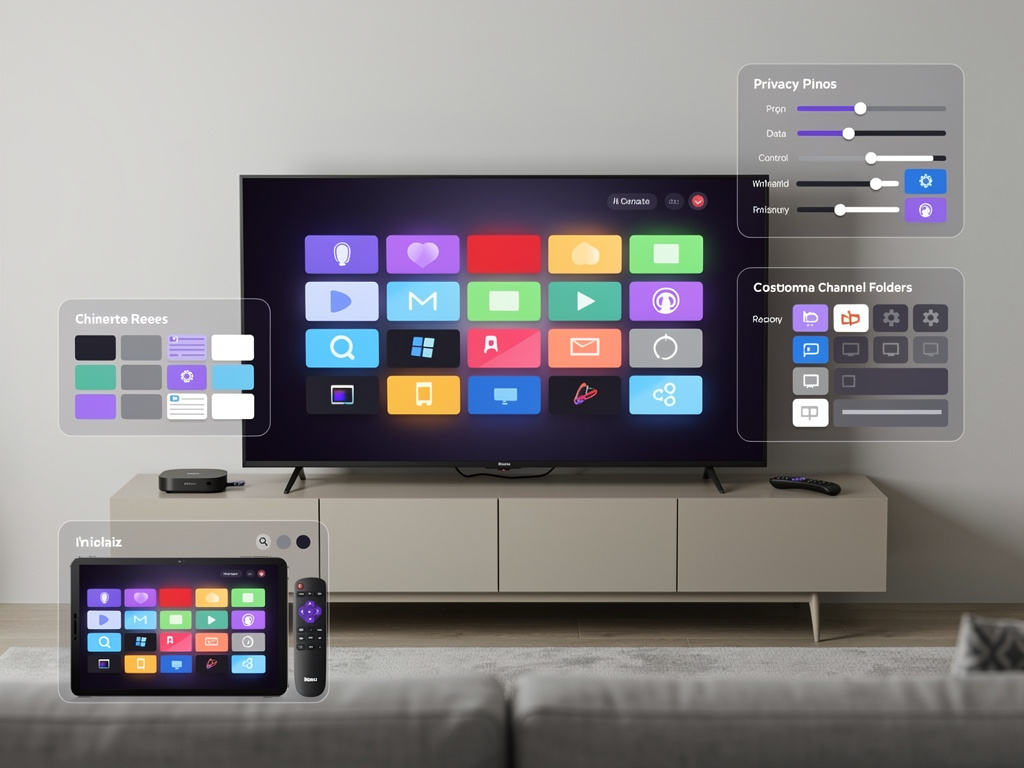
Roku streaming devices have long been praised for their straightforward interface and wide selection of channels, but many users have grown frustrated with the increasing presence of advertisements directly on the home screen. What once served as a clean launching point for favorite apps now displays sponsored content, promotional banners, and recommended movies that cannot be entirely removed. According to a detailed guide published by MakeUseOf, several practical adjustments can reduce the visual clutter and make the experience feel more personal again.
The shift toward ad-supported home screens reflects broader changes in how streaming hardware companies generate revenue. Roku earns money not only from device sales and licensing fees but also from advertising partnerships. As a result, the platform pushes promotional tiles for films available on various services, highlights paid placements from studios, and sometimes inserts full-screen takeover ads when users first turn on the television. These elements compete for attention alongside the apps users actually installed. While Roku maintains that the recommendations help people discover new content, the reality for many owners is a screen that feels busy and commercialized.
Fortunately, users retain several options to regain control. The first and most effective step involves adjusting privacy and data-sharing settings. Roku collects viewing habits to tailor suggestions, but limiting that data flow immediately reduces the volume of targeted promotions. To begin, open the Settings menu, select Privacy, and then choose Smart TV Experience. From there, disable both the options labeled “Use information from TV inputs” and “Use information from the Roku mobile app and mobile devices.” These toggles control how the system builds profiles based on what you watch through cable boxes, antennas, or connected phones. Turning them off does not eliminate every advertisement, yet it noticeably decreases the number of personalized movie posters that appear in the main grid.
Another helpful adjustment concerns automatic content updates and featured app promotions. Within the same Privacy section, users can also limit ad measurement and tracking. Although Roku still displays some generic sponsored rows, the content becomes less aggressive when the device lacks detailed behavioral data. After making these changes, restart the Roku by unplugging it for thirty seconds. The refreshed interface often shows fewer irrelevant tiles on the next boot.
Beyond privacy controls, users can manually reorganize the home screen to push advertisements farther down the page. Roku allows complete customization of app order. Highlight any channel icon using the remote, press the asterisk button, and select “Move channel.” Shift streaming services you use most frequently—such as Netflix, Hulu, Disney Plus, or Prime Video—to the top rows. Place less-used or Roku-curated channels toward the bottom. Because the platform displays only a limited number of rows without scrolling, burying promotional content below the fold effectively hides it during normal use. Many people also remove channels they no longer need. Highlight the unwanted app, press the asterisk key, and choose “Remove channel.” A cleaner list means fewer automatic suggestions generated from unused services.
The MakeUseOf article highlights an often-overlooked feature called “Featured Free.” This row promotes ad-supported movies and shows, many of which come from The Roku Channel. While the content itself may appeal to some viewers, the constant rotation of posters can feel intrusive. One workaround involves creating a dedicated folder for promotional material. Roku supports grouping channels into folders, which collapses multiple icons into a single tile. Move every sponsored or rarely used channel into a folder labeled “Promotions” or “Other.” The home screen then displays only one icon instead of an entire row of advertisements. Accessing the folder requires an extra click, but the tradeoff delivers a much tidier starting point.
Screen savers and theme packs also influence the overall atmosphere. Many users install custom screensavers that activate after inactivity, replacing Roku’s default advertisements with personal photos or simple clock displays. To change this setting, navigate to Settings, then Theme, and explore available screensaver options. Several free and low-cost choices exist in the Roku Channel Store. Selecting a minimalist design further reduces commercial noise when the device sits idle.
Some advanced users take additional measures by installing third-party software or adjusting network-level controls. While Roku’s closed operating system limits deep modifications, certain DNS tweaks can block specific advertising domains. However, these methods require technical comfort and may interfere with legitimate features such as software updates or channel access. For most people, the simpler adjustments described earlier produce satisfactory results without risking stability.
Parental controls offer another layer of customization that indirectly reduces clutter. By creating a PIN-protected profile and restricting access to the Roku Channel Store or certain content categories, users can prevent new promotional apps from appearing automatically. Although designed for families, this feature helps anyone who wants to lock the interface into a predictable state. Set the PIN through the Privacy submenu and enable restrictions on movie and television purchases as well. Once activated, the system prompts for the code before installing anything new, which stops surprise sponsored channels from materializing overnight.
Roku continues to test different home screen layouts across various firmware versions. Owners who notice sudden changes in advertisement frequency may be part of an A/B experiment. In these situations, the only reliable response is to reapply the privacy and organizational tweaks after each system update. Checking for software updates manually through the Settings menu ensures the device runs the latest version, which sometimes includes minor interface refinements that affect how promotions display.
Voice commands and shortcut buttons provide quicker access to preferred content, reducing the time spent staring at the ad-laden home screen. Programming the remote’s preset buttons to launch specific apps bypasses the main grid entirely. Many recent Roku models allow users to assign any channel to the four colored shortcut keys. This customization means frequent viewers can jump straight into their library without glancing at promotional rows.
For those willing to explore paid alternatives, Roku offers a subscription service called Roku Premium that removes some advertisements, although availability varies by region and plan. Most users find the combination of privacy changes, manual reorganization, and folder grouping sufficient to create an acceptable experience without extra monthly costs.
The tension between free hardware and advertising-supported services remains central to the modern streaming market. Companies like Roku must balance user satisfaction with the need to generate revenue from partners who pay for prominent placement. Understanding this dynamic helps explain why advertisements persist even after privacy settings are tightened. Complete removal of all sponsored content is currently impossible on standard Roku devices, but the adjustments outlined here consistently minimize its visibility and impact.
Many long-time Roku owners report that after spending thirty minutes customizing their home screen and privacy options, the interface regains much of its earlier simplicity. Regular maintenance, such as reviewing installed channels every few months and updating folder organization, keeps the experience fresh. As more viewers cut cable and rely on streaming sticks or boxes, these small victories in controlling the digital living room become increasingly valuable.
Ultimately, the tools provided by Roku allow thoughtful users to shape their home screen into something closer to a personal media hub rather than a digital billboard. By combining reduced data collection, strategic app placement, creative use of folders, and thoughtful screensaver choices, anyone can transform an ad-heavy interface into a cleaner, more focused environment that prioritizes the content they actually want to watch. The process requires only basic navigation skills and a few minutes of attention, yet the improvement in daily enjoyment proves significant for those bothered by commercial intrusion.


 WebProNews is an iEntry Publication