

Lost important files and not sure what to try first? The right file recovery software can often bring them back, especially if you stop using the drive right away. We didn’t just look at feature lists. We tested these tools on SSDs, hard drives, USB sticks, and formatted partitions to see which ones actually recover files and which ones only look good on paper.
Here are the five tools that stood out in 2026 and truly earned their place among the best data recovery software options available today.
How We Tested and Ranked These Tools
Before we move on to the file recovery software tools themselves, let’s explain how they earned a place in this ranking. We didn’t rely on brand recognition or feature lists copied from official websites. Every solution went through structured hands-on testing designed to reflect real data loss situations people deal with in 2026.
Here are our criteria:
- First in our evaluation was recovery performance. We tested permanently deleted files, emptied Recycle Bin cases, quick-formatted partitions, RAW file systems, external hard drives, USB flash drives, and SSDs. We checked whether recovered files retained their original names and folder structure, and whether large video files remained playable after recovery.
- Another important factor was the file system and format support. Modern storage environments require compatibility with NTFS, exFAT, FAT32, and many others. Software that handled different storage types confidently scored higher.
- Next is advanced capability. Features such as disk imaging, partition reconstruction, RAID support, and encrypted drive handling can make a major difference in complex cases. Basic deletion recovery is not enough for a top ranking. We looked at whether the software provides deeper tools for more serious data loss situations.
- Usability is no less important than technical performance. A powerful engine loses value if the interface is confusing. We evaluated how clearly scan modes were presented, how filtering works, and how simple the recovery workflow feels from start to finish. Well-designed tools reduce mistakes and help users recover data more safely.
- Price and overall value also played a role. We compared free limits, trial restrictions, subscription models, and lifetime licenses. Some free data recovery software options provide enough functionality for small recovery jobs, while others mainly serve as previews before purchase.
At the end of the day, performance mattered most. If a tool couldn’t consistently recover files across different scenarios, it didn’t make the cut. We see plenty of programs that look impressive at first glance but fall short during real testing.
The tools that made it into our Top 5 proved they can handle everyday data loss and tougher cases reliably, including situations where users look for tips on recovering files after Windows update. They’re not just popular names; they actually get the job done.
5 Best Data Recovery Software
Here are the five tools that stood out in our testing. If you compare these results with the 2025 file recovery tools rankings, you’ll notice something interesting: leaders rarely change from year to year, which says a lot about long-term performance and consistency.
Let’s take a closer look at what these data recovery tools offer and who they’re best suited for.
1. Disk Drill
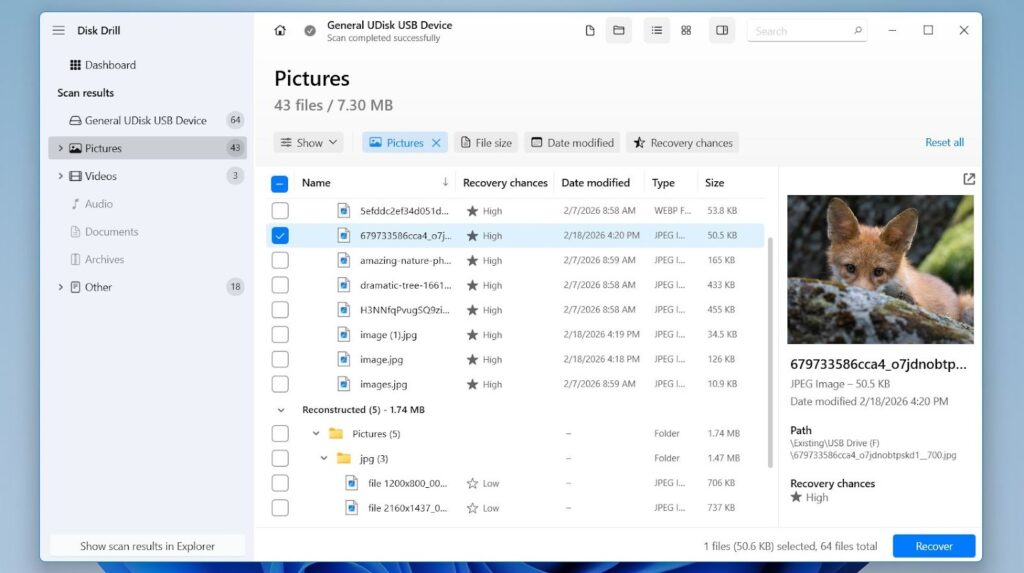
The leader in our ranking is Disk Drill, and it earned that spot pretty confidently. In our tests, it consistently delivered high recovery results and stayed easy to use from start to finish. It works on Windows and macOS, and one license unlocks both versions. The Windows version lets you recover up to 100 MB for free, which is enough to test the software properly. Paid plans start around $89.
Disk Drill handles common scenarios like deleted files, formatted drives, RAW partitions, SSDs, and external hard drives. In our testing, it recovered around 95-97% of files across different cases, which is impressive. Plus, version 6 introduced Advanced Camera Recovery, which can rebuild fragmented videos from action cameras and drones, something many tools struggle with.
It also supports NTFS, exFAT, FAT32, APFS, HFS+, and EXT4, plus RAID recovery, BitLocker drives, and disk image scanning. The improved Byte-to-Byte Backup feature is another big plus, especially for unstable drives.
Pros
- Very high recovery success rate
- Clean and modern interface
- 100 MB free recovery on Windows
- Advanced Camera Recovery for fragmented videos
- Broad file system compatibility
- RAW format support
- Disk imaging and RAID support
- Extra protection features like S.M.A.R.T. monitoring
Cons
- No phone support
- No built-in bootable media creator
Best for: Disk Drill fits users who want strong recovery performance without a complicated interface. It serves beginners who need a clear, guided process, and it also gives experienced users advanced tools for complex data loss scenarios. This combination of solid results, wide format compatibility, and clean design is why it ranks first in our 2026 list.
2. R-studio
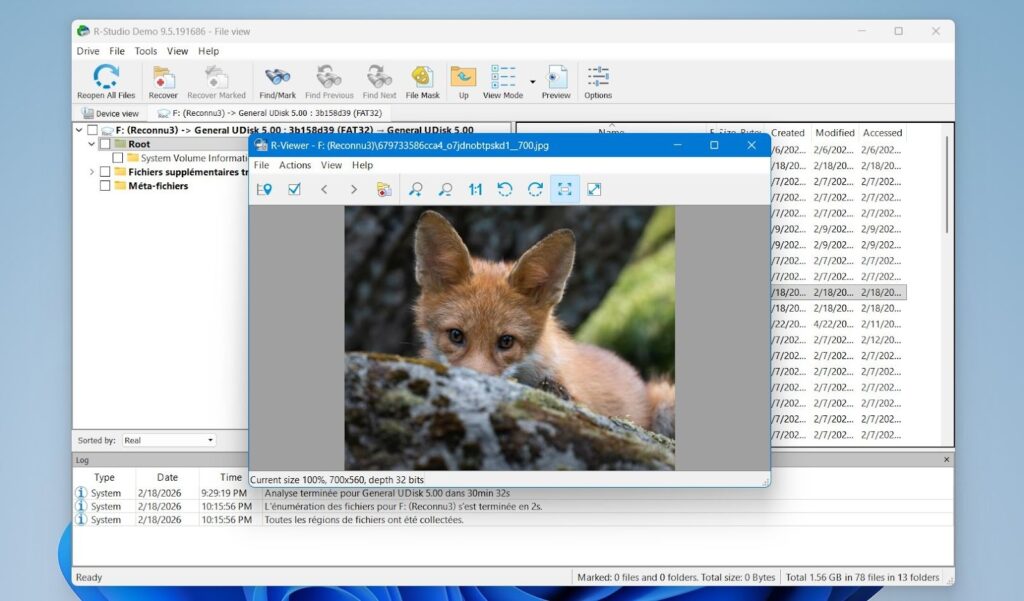
Next in our ranking is R-Studio, a tool that’s clearly built with professionals in mind. It’s powerful, flexible, and capable of handling complex recovery cases, but it’s not the most beginner-friendly option out there.
R-Studio runs on Windows, macOS, and Linux, which already makes it more versatile than many competitors. It’s distributed as freemium, with a demo version that allows recovery of files smaller than 1024 KB. Paid licenses start at $49.99 and can go up significantly depending on features.
In our tests, R-Studio delivered very strong results when recovering data from NTFS, APFS, HFS+, and EXT4 partitions. It handled large datasets well and showed excellent file system–based recovery performance. RAID reconstruction is one of its biggest strengths. It can automatically detect and rebuild RAID arrays, which is a major advantage in advanced scenarios.
However, its signature-based recovery struggled more with modern RAW photo and video formats compared to our top pick.
Pros
- Available on Windows, macOS, and Linux
- Strong file system–based recovery performance
- Advanced RAID reconstruction capabilities
- Broad file system support
- Solid scanning performance on large drives
Cons
- Interface is complex and not beginner-friendly
- Full-featured licenses can be expensive
- Signature recovery weaker with some modern media formats
Best for: R-Studio is a serious hard drive recovery software aimed at advanced users and IT professionals. If you know what you’re doing and need deep control over the recovery process, it’s a strong option. For casual home users, though, it may feel too complex.
3. Disk Genius
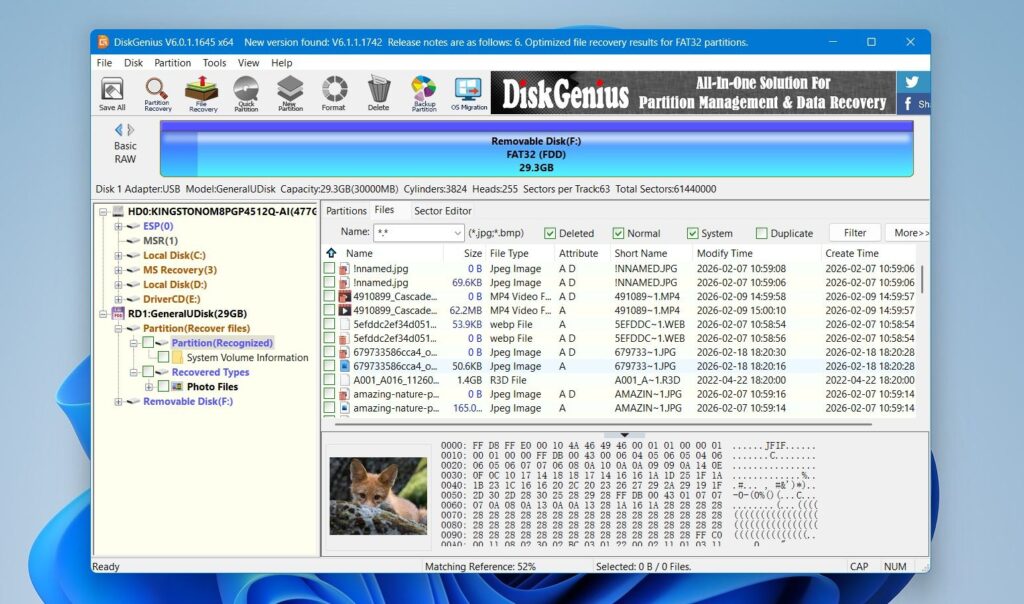
DiskGenius takes a slightly different approach compared to most tools on this list. It’s not focused purely on recovery. Instead, it combines file recovery with partition management, disk repair, and cloning features in one package.
It’s available only for Windows and offered as freemium software. The free version allows recovery of files up to 64 KB, which is mostly enough to check scan results but not practical for real recovery. Paid versions start at around $69.90 and increase depending on the feature set.
In our evaluation, DiskGenius showed solid but not top-tier recovery results. It works reliably with NTFS and FAT-based file systems, but it doesn’t support recovery from HFS+ or APFS at all. EXT4 support is limited to simple deleted files. So while it can handle common Windows scenarios, it’s not ideal for cross-platform recovery cases.
Where DiskGenius really stands out is its technical toolkit. It includes partition editing, disk cloning, disk imaging, bad sector checks, and even the ability to boot into a modified WinPE environment. That makes it useful when a system won’t boot or when you need deeper control over disk structure.
Pros
- Recovery and disk management in one tool
- Fast scan speeds
Includes cloning, imaging, and partition tools - WinPE boot option for unbootable systems
- Useful for technical troubleshooting
Cons
- Interface feels crowded and technical
- Free version is very restricted
- No support for some major file systems
- Recovery results are good, but not top-tier
Best for: DiskGenius makes sense for users who like having full control over their drives and partitions. If you’re comfortable with technical tools and want more than just a basic recovery app, it can be a strong option. If your priority is maximum recovery success with minimal setup, other tools may feel more straightforward.
4. UFS Explorer
UFS Explorer is where things get more technical. This is not a “click once and recover everything” type of tool. It’s built for demanding recovery jobs and users who want full control over the process.
It runs on Windows, macOS, and Linux, which already makes it one of the most versatile options here. The free trial allows recovery of files smaller than 256 KB, mainly for testing. Paid licenses start around $64.95 and can go all the way up to professional-tier pricing depending on features.
In our tests, UFS Explorer delivered strong results. Deep scans reached around 90%+ recovery success across major file systems. It performed especially well with NTFS, EXT4, and HFS+, preserving folder structure and metadata reliably.
Where it really stands out is file system coverage. It supports almost everything: NTFS, FAT, exFAT, HFS+, APFS, EXT2/3/4, Btrfs, XFS, ReFS, and more. It also handles RAID reconstruction, encrypted volumes, virtual machine disks, and even remote recovery over a network or SSH.
Pros
- Extremely broad file system support
- Excellent deep scan recovery performance
- Advanced RAID reconstruction
- Network and remote recovery capabilities
- Strong performance across Windows, Mac, and Linux
Cons
- Interface is highly technical
- Complex for beginners
- No preview during scanning
- Limited filtering tools in results view
Best for: UFS Explorer feels closer to professional recovery software than consumer tools. It’s powerful and flexible, but it expects you to understand what you’re doing. For advanced users and IT professionals, it’s a strong choice. For casual home users, it may feel like too much.
5. PhotoRec
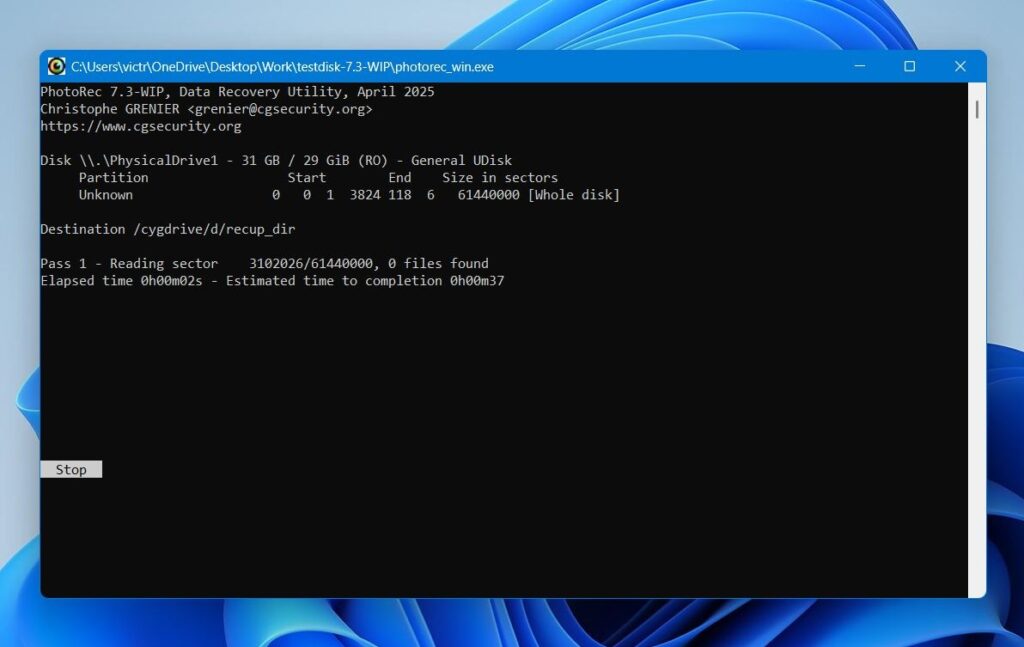
The final tool on our list is the fully free data recovery software. PhotoRec is open-source, completely free to use, and available on Windows, macOS, and Linux. There are no paid upgrades, no recovery limits, and no hidden restrictions.
PhotoRec works differently from most tools above. It relies entirely on signature-based scanning. That means it searches for known file patterns directly on the drive, which allows it to recover data even if the file system is badly damaged or completely missing. In situations where partitions are corrupted or reformatted, this approach can be surprisingly effective.
In our testing, its signature scanning performance was solid. It handled many common file types well and didn’t struggle with basic photo and document recovery. However, because it does not use file system records, it cannot restore original file names or folder structure. Recovered files come back renamed and unorganized.
Pros
- Completely free and open source
- No recovery limits
- Works on Windows, macOS, and Linux
- No installation required
- Strong signature-based scanning
Cons
- No recovery of original file names or folder structure
- Very basic interface
- No preview during scan
- Lacks advanced features like RAID reconstruction or disk imaging
Best for: PhotoRec is not the easiest tool to use, especially if you rely on the command-line version. There is a simple graphical version for Windows called QPhotoRec, but it’s minimal. Still, if your priority is free recovery and you don’t mind spending extra time sorting files afterward, PhotoRec remains one of the strongest no-cost options available.
Side-by-Side Comparison of the Best Recovery Software
If you don’t want to read through all the detailed breakdowns, here’s a quick comparison of the five tools we covered. This table highlights the key differences at a glance so you can decide faster.
| Tool | Platforms | Free Limit | Best For | Strengths | Main Drawback |
| Disk Drill | Windows, macOS | 100 MB (Windows) | Overall balance | High recovery rate, modern interface, Advanced Camera Recovery, disk imaging | No phone support |
| R-Studio | Windows, macOS, Linux | Files < 1024 KB | Advanced users | Strong file system recovery, RAID reconstruction, cross-platform | Complex interface |
| DiskGenius | Windows | Files < 64 KB | Disk management + recovery | Partition tools, cloning, WinPE boot option | Limited Mac file system support |
| UFS Explorer | Windows, macOS, Linux | Files < 256 KB | Professional recovery | Broad file system support, RAID, network recovery | Technical and not beginner-friendly |
| PhotoRec | Windows, macOS, Linux | Unlimited | Fully free recovery | Open-source, no limits, strong signature scan | No file names or folder structure recovery |
Final Verdict
The right tool depends on your case:
- If you want the most balanced and reliable option, Disk Drill is the safest overall choice in 2026. It delivered strong results in our tests and works well for both simple deletions and more serious data loss.
- If you are okay with a more technical interface and want deeper control, you can also try R-Studio or UFS Explorer.
- DiskGenius fits better if you prefer disk management tools in the same app.
- If cost is your main concern, PhotoRec remains the strongest fully free option.


 WebProNews is an iEntry Publication